This blog describes the steps Stamus Networks customers may take to determine if any of your systems have been attacked in the past, are currently under attack or vulnerable as a result of two recent Microsoft vulnerabilities outlined in CVE-2026-21511 and CVE-2026-21510. This blog was originally published as a Stamus Networks Technical Brief, StamusNetworks-TB-MS-CVE-022026-1 (PDF).
Background
On February 10, 2026, Microsoft published two Common Vulnerabilities and Exposure (CVE) alerts identifying vulnerabilities in Microsoft Outlook Spoofing - CVE-2026-21511 and Windows Shell Security Feature Bypass Vulnerability - CVE-2026-21510.
Microsoft Outlook Spoofing
Deserialization of untrusted data in Microsoft Office Outlook allows an unauthorized attacker to perform spoofing over a network.
Windows Shell Security Feature Bypass Vulnerability
Protection mechanism failure in Windows Shell allows an unauthorized attacker to bypass a security feature over a network.
We recommend you patch any vulnerable systems as soon as possible using the most “Security Updates” released by Microsoft identified in each of the CVE announcements listed above. Users should consult the following Microsoft release announcement for patch information and potential workaround.
In the meantime, you may take the following steps to help determine if any of your systems have been attacked in the past, are currently under attack or vulnerable.
Detection and Escalation
Please follow the steps listed below in the Clear NDR “Hunting” interface
Create a Filter
Any CVE number can be searched in the Hunt interface.
To create a filter:
1. In Hunt, click on the magnifying icon next to any signature (first group Signatures on the Dashboard tab).
2. Click on the pencil/Edit icon on the resulting filter displayed as “Active Filters:”.
3. Type the CVE number or a text descriptor with a wildcard (*) it at each end (for example: *CVE-2026-21510* or *CVE-2026-21511* )
4. Select the checkbox “Wildcard view”
5. Click Save
You are now ready to review the results and events in the Dashboard,Host Insights and Alert views”
The example screenshot below shows how to do that for “CVE-2026-21510”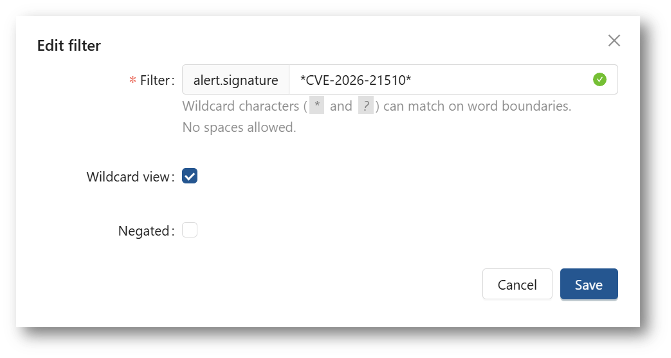
Save the Filter
The resulting filter can be saved by simply clicking on the “Save” link on the right-hand side of the “Active filter”. Check “Shared” in the resulting dialog box if you want to make the filter available to all users.
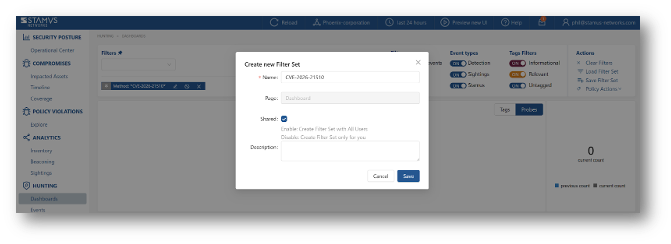
The newly created filter is now available in “Global Filter Sets” or “Private Filter Sets”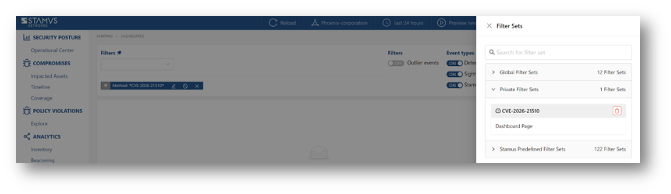
Review Detection Methods in Hunting
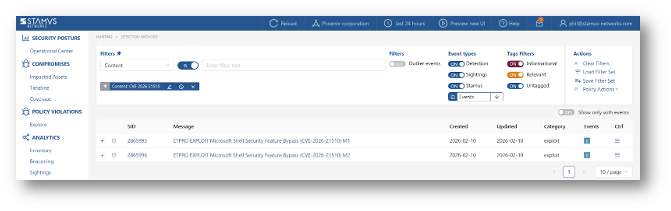
To review exactly what detection methods are available in Hunting for that specific vulnerability you can:
1. Head to the Detection Methods tab on the left-hand side in Hunt.
2. Select the “Content” option from the dropdown menu.
3. Type in the full CVE (i.e. CVE-2026-21510), hit Enter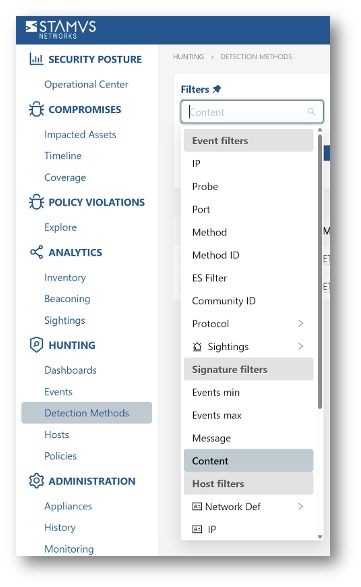
Automated Escalation and RestAPI Notification
If needed, an automated escalation to a Declaration of Compromise (DoC) and API webhooks is also possible, including from historical data.
For example, if it happened 24hrs or 7 days ago it will still be detected and escalated based on that custom filter.
To do so:
1. After creating your filter as above
2. From the right-hand side drop down menu, Policy Actions, select “Create declaration events”.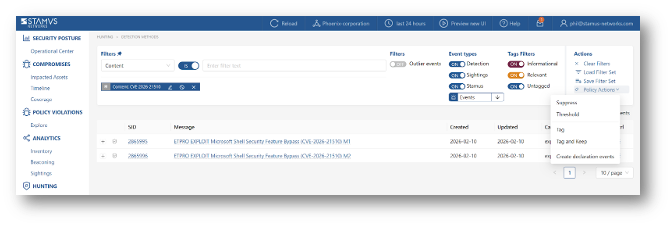
3. Choose the plus (+) next to the Threat: Name
4. Fill in the Threat Name, Description, and Additional information.
5. Enter an Offender Key (i.e. src_ip)
6. Enter a Victim Key (i.e. dest_ip)
7. Leave Victim Type “IP”
8. Set a Kill Chain phase (i.e. Exploit)
Select “Generate DoC events from historical data”. [This will make sure historical events are also checked]
If desired and webhooks are setup also select “Generate webhooks events from historical data”
The screenshot below shows the DoC event creation form: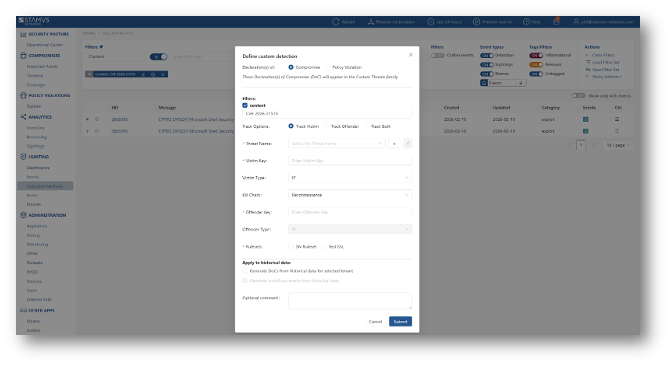
Automated Classification and Tagging
Auto Tagging all relevant events is also an option. This will allow for any logs (alerts or protocol transaction events related to the alerts) to have a “Relevant” tag inserted in the JSON logs: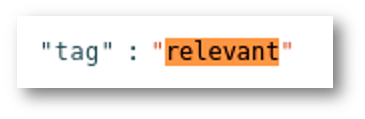 To do so:
1. After creating your filter as above.
2. From the right-hand side drop down menu - Policy Actions , Select “Tag”.
3. Add in an optional comment and select a ruleset.
4. Update the threat detection (upload button in the middle of the top bar on the Hunt page, on the left-hand side of History, Filter Sets )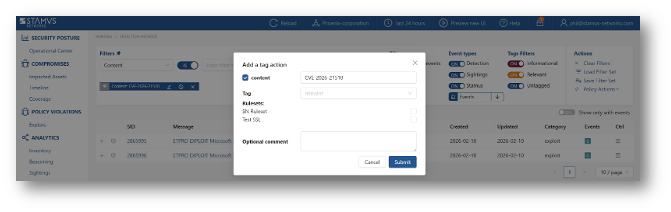
Export Data - SIEM / Elasticsearch / Kibana
All data generated by Clear NDR, such as alerts, protocol transactions, sightings events or Host Insights information, may be exported and shared with any SIEM or SOAR system.
Over 4000 fields are available -- from domain requests, http user agents used, hostnames, usernames logged in -- to encrypted analysis including JA3S/JA4 fingerprinting, TLS certificates and more.
Any query of the Stamus Networks data (protocol transaction or alert logs) can be exported via a regular JSON log query or visualization export.
Example of Kibana query on alert events
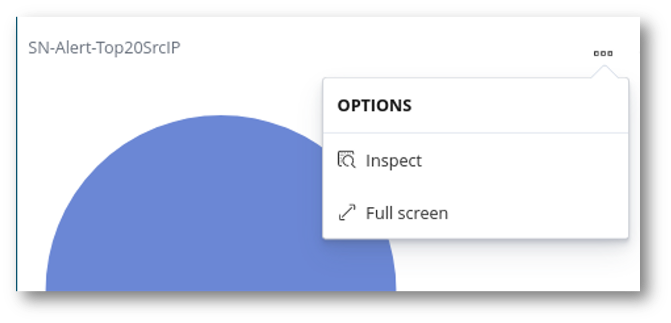
To export CSV data from any info of the alerts you can open the SN-ALERT dashboard in Kibana, type in the filter “alert.signature.keyword:*CVE-2026-21510*” , then you can export a CSV of any visualization using “Inspect” (see example below):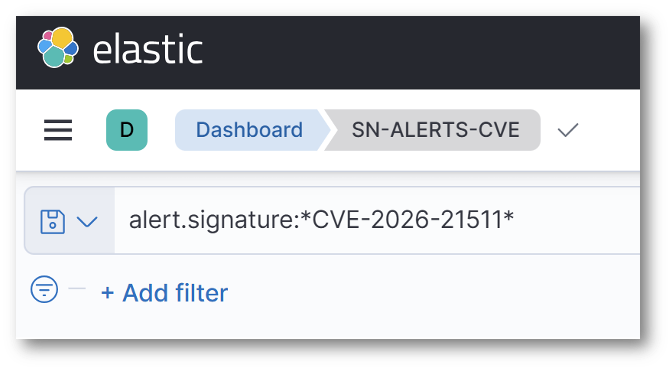
Click on “Inspect” in any visualization to export a CSV
Export Data - Splunk
Any query of the Stamus Networks data (protocol transaction or alert logs a like) in Splunk can be exported via a regular Splunk query or visualization export.
Example of a Splunk query on alert events
Splunk:
”event_type=alert "alert.signature"="*CVE-2026-21510*" 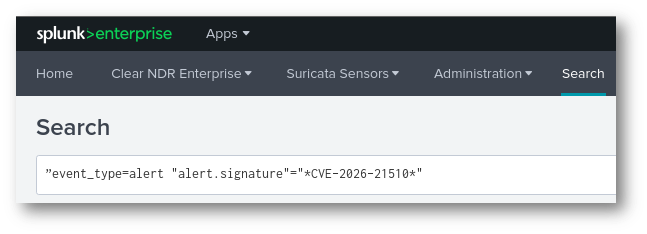
Protocol transactions
Stamus Networks provides a free Splunk app https://splunkbase.splunk.com/app/5262 that can be used to do specific searches for both CVE-2026-21510 and CVE-2026-21511.
If there are any Splunk visualizations queries that have supporting information for the CVE that needs to be exported, it can be done so by the native Splunk export functionality.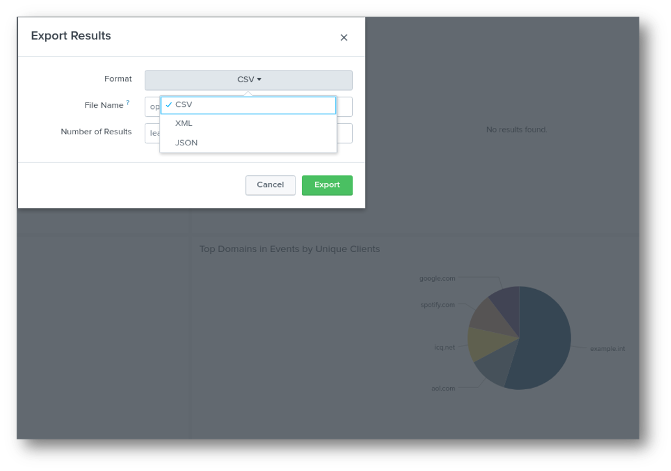
Troubleshooting and Help
Please feel free to reach out to support@stamus-networks.com with any questions or feedback.